Tap a place to learn what happened there. The numbers follow the time when the place became important for the Reformation. Clicking on Germany, Central Germany, or the East Coast enlarges the map.
around 1400 to 1415
Prague
From 1402 Jan Hus preached in Czech to large congregations in the Bethlehem Chapel in Prague. He called the church to repentance, criticized indulgences and the wealth of the clergy, and was for a time rector of the University of Prague.
After his death in Constance the Hussite movement arose in Bohemia. Its sign was the chalice, for it gave everyone bread and wine at the Lord’s Supper. When Luther read Hus’s writings in 1520, he wrote to Spalatin that they had all been Hussites without knowing it.
To see today: The Bethlehem Chapel, faithfully rebuilt in the 20th century, the Jan Hus Memorial on Old Town Square, and the Carolinum, the old building of Charles University.
1414 to 1418
Constance
From 1414 to 1418 a great council met in Constance. It ended the division of the church, which at times had three popes, and in 1417 elected Martin V as sole pope.
The council condemned the teachings of John Wycliffe and summoned Jan Hus. Although King Sigismund had promised him safe conduct, Hus was imprisoned, condemned as a heretic, and burned outside the city gates on 6 July 1415. A year later his friend Jerome of Prague died in the same way.
To see today: The Council Building at the harbor, the minster, the Hus Museum in the old town, and the Hussenstein, a memorial stone at the place where Hus died.
1483 and 1546
Eisleben
On 10 November 1483 Martin Luther was born in Eisleben. The very next day he was baptized in the Church of St. Peter and Paul. It was the day of St. Martin, and so he received that saint’s name.
Here the circle of his life also closed. In the winter of 1546 Luther traveled to Eisleben to settle a dispute among the counts of Mansfeld. He preached several more times in St. Andrew’s Church and died in his birthplace on 18 February 1546.
To see today: The houses of his birth and death are museums; his birth house is one of the oldest museums in the German-speaking world. In the baptismal church of St. Peter and Paul there is a font set into the floor, and in St. Andrew’s Church the pulpit from which Luther last preached. Together with the Luther memorials in Wittenberg they are a UNESCO World Heritage Site.
1484 to 1497
Mansfeld
In 1484 the family moved to Mansfeld. His father Hans Luder worked in copper mining and gained respect and prosperity there as a master smelter. Here Martin grew up with his siblings and attended the Latin school.
His upbringing was strict, as was usual at the time. Later Luther remembered the punishments at school and at home, but also the piety of his parents. His connection to the counts of Mansfeld remained with him all his life.
To see today: Luther’s family home with a museum on his childhood, the town church of St. George, where he attended services as a child, and above the town Mansfeld Castle.
1497 and 1524
Magdeburg
At the age of 13 Luther attended a school in Magdeburg for about a year. There he probably came into contact with the Brethren of the Common Life, a lay movement that cultivated a simple, inward piety.
In 1524 Luther preached in St. John’s Church, and the city soon turned to the Reformation. After Luther’s death Magdeburg became the bulwark of Lutheranism against the Augsburg Interim. The city’s printers produced so many polemical writings that it was called “Our Lord God’s Chancery”.
To see today: The cathedral, the first Gothic cathedral on German soil, and St. John’s Church with the Luther monument in front of it.
1498 and 1521
Eisenach and the Wartburg
From 1498 to 1501 Luther went to school in Eisenach. He was taken in by the Cotta family and came to know an educated, devout household there. He later called Eisenach his “dear town”.
After the Diet of Worms, Elector Frederick the Wise had Luther seized in a staged attack in May 1521 and brought to the Wartburg. As “Junker Jörg” (Knight George) he lived there in hiding for almost a year. In only eleven weeks he translated the New Testament from Greek into German. It appeared in September 1522 and became known as the “September Testament”.
To see today: The Wartburg with the Luther room in which Luther translated is a UNESCO World Heritage Site. In the town are the Luther House with an exhibition on the Bible translation and St. George’s Church, where Luther sang in the choir as a schoolboy.
1501 to 1511
Erfurt
In 1501 Luther began his studies in Erfurt and became Master of Arts in 1505. On his way back from a visit to his parents he was caught in a severe thunderstorm near Stotternheim on 2 July 1505. In fear of death he vowed to become a monk.
Two weeks later he entered the monastery of the Augustinian Hermits, against his father’s will. In 1507 he was ordained a priest in Erfurt Cathedral. In the monastery he struggled with the question of how he could find a gracious God.
To see today: The Augustinian Monastery with its church, cloister, and an exhibition on Luther’s time as a monk, St. Mary’s Cathedral, and near Stotternheim a memorial stone at the site of the thunderstorm.
1510 or 1511
Rome
On business for his order the young monk Luther traveled to Rome. As a devout pilgrim he visited the city’s churches and relics. On the Holy Stairs at the Lateran he prayed a Lord’s Prayer on each step for the soul of his grandfather, and at the top, as he later told, the thought came to him: who knows whether it is true?
The worldliness of many clergy shocked him. A few years later an indulgence was to finance the rebuilding of St. Peter’s, and this sparked the controversy over the 95 Theses.
To see today: St. Peter’s Basilica, the Holy Stairs at the Lateran, and Santa Maria del Popolo, the Augustinian monastery where Luther stayed. Several popes have visited the Lutheran congregation in the Evangelical Lutheran Christuskirche.
1517
Wittenberg
From 1511 Luther lived in Wittenberg. He became Doctor of Theology and taught Holy Scripture at the young university. On 31 October 1517 he sent out his 95 Theses against indulgences, and from here the Reformation spread.
In Wittenberg Luther, Philip Melanchthon, and Johannes Bugenhagen worked together, and here Luther lived with Katharina von Bora and their children in the former monastery. The Town Church of St. Mary was his preaching church. Luther and Melanchthon are buried in the Castle Church.
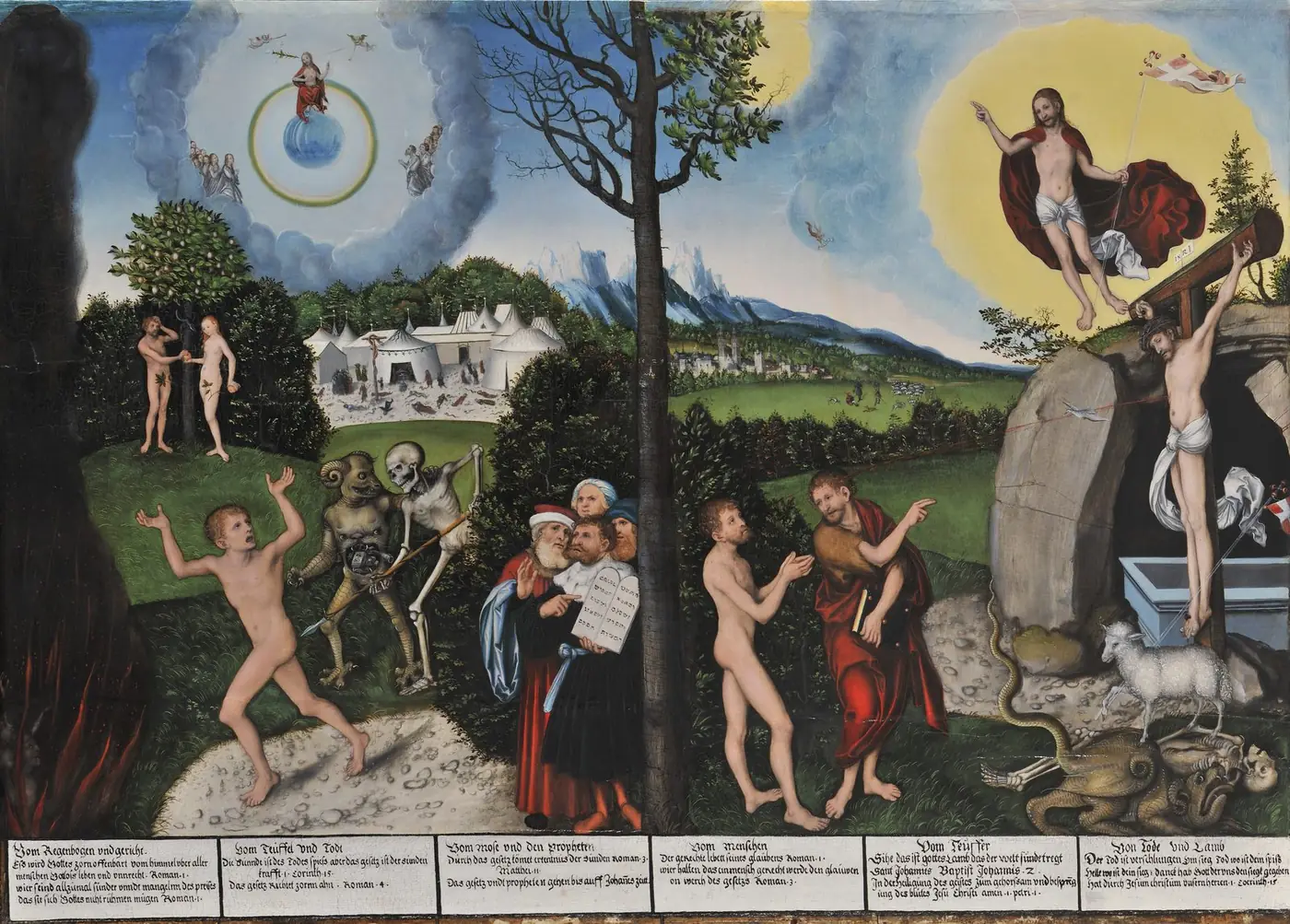
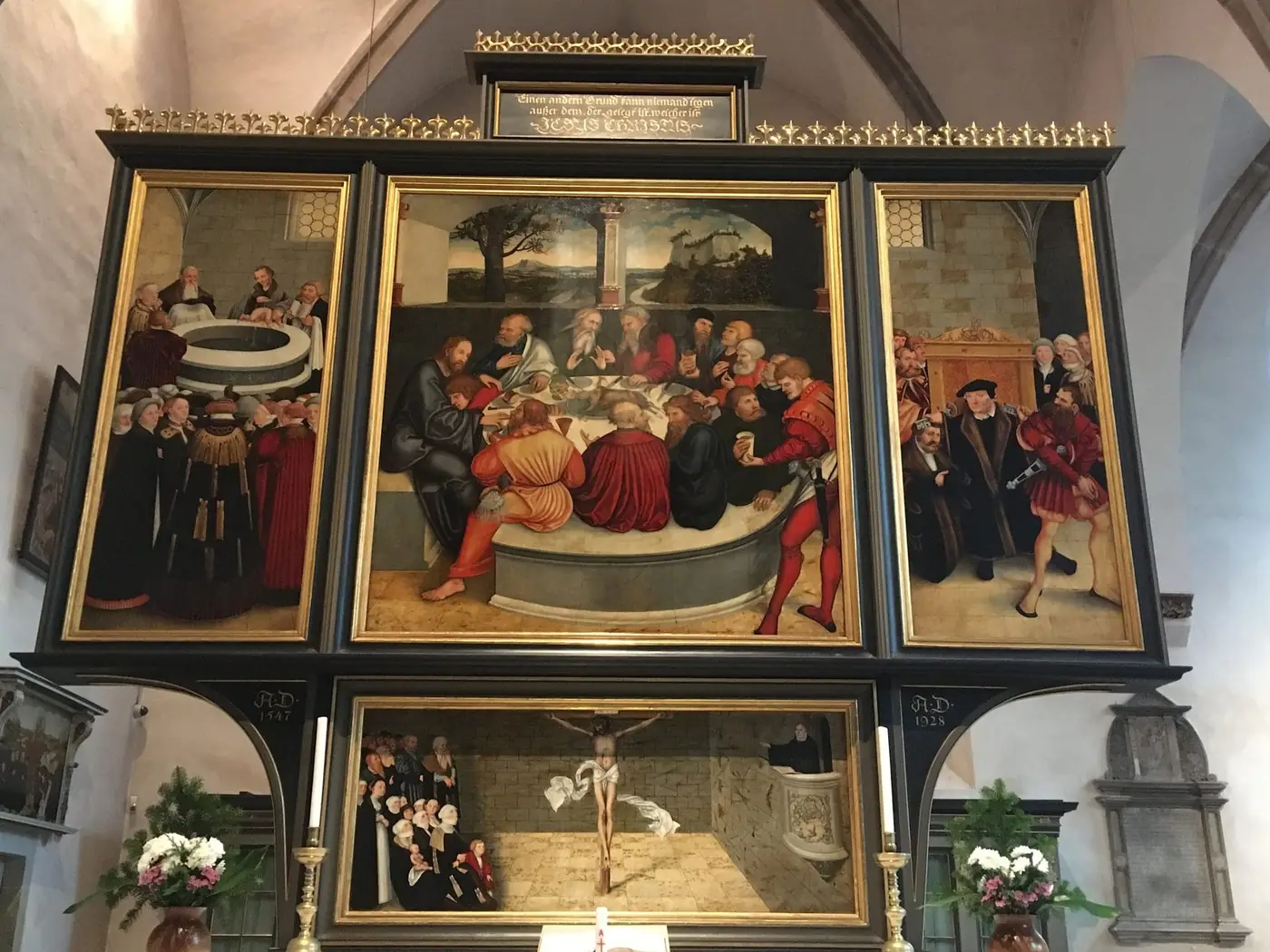
To see today: The Luther House, the largest museum on the history of the Reformation, the Melanchthon House, the Castle Church with the bronze Theses Door, and the Town Church with Cranach’s Reformation Altarpiece. The Luther memorials are a UNESCO World Heritage Site.
1519 and 1539
Leipzig
In the summer of 1519 Luther disputed in the Pleissenburg with the Ingolstadt theologian Johann Eck. In this Leipzig Disputation Luther declared that councils too could err, and that not everything about Jan Hus had been heretical. With this the break with Rome could hardly be stopped.
Duke George of Saxony remained a determined opponent of the Reformation. Only after his death did his brother introduce it in 1539, and at Pentecost Luther himself preached in Leipzig. Later the city became a center of Lutheran church music through Johann Sebastian Bach, cantor of St. Thomas from 1723 to 1750.
To see today: St. Thomas Church with Bach’s grave and St. Nicholas Church, from which the prayers for peace went out in 1989. The New Town Hall stands today where the Pleissenburg once stood.
1521
Worms
In April 1521 Luther stood in Worms before Emperor Charles V and the princes of the empire. He was to recant his writings. Luther refused: his conscience was captive to the Word of God, and unless he was refuted by Scripture he could not and would not recant anything.
The emperor then declared Luther an outlaw in the Edict of Worms and banned his writings. But the edict could not be enforced in many parts of the empire.
To see today: The great Luther Monument of 1868, one of the largest Reformation monuments in the world, and St. Peter’s Cathedral. In the Heylshof Garden a memorial marks the place where Luther stood before the emperor.
1522
Riga
Riga was one of the first cities outside the empire to join the Reformation. From 1522 Andreas Knopken from Pomerania preached the gospel at St. Peter’s Church, and soon the whole city followed.
In 1523 Luther wrote a letter to the Christians in Riga, Reval, and Dorpat and encouraged them in the faith. Latvia and Estonia remained shaped by Lutheranism for centuries.
To see today: St. Peter’s Church with its tall tower and the cathedral with its famous organ. The Evangelical Lutheran Church of Latvia has its seat here.
1522 and 1524
Bremen
On 9 November 1522 Heinrich of Zutphen, an Augustinian monk and fellow friar of Luther, preached the first evangelical sermon in Bremen. The citizens held on to him despite the archbishop’s resistance, and the city turned to the Reformation.
In 1524 Heinrich followed a call to Dithmarschen. There he was attacked in Heide and burned on 10 December 1524. Luther wrote about him “On Brother Henry, Burned in Dithmarschen”. Later Bremen leaned mostly toward Reformed teaching; the cathedral became the city’s main Lutheran church.
To see today: St. Peter’s Cathedral, the main Lutheran church of the city, with the Cathedral Museum. In Heide a memorial stone recalls Heinrich of Zutphen.
1523
Brussels
On 1 July 1523 two young Augustinian monks from Antwerp, Hendrik Voes and Johann van Esschen, were burned in the market square of Brussels. They had confessed Luther’s teaching and are regarded as the first martyrs of the Reformation.
The news moved Luther deeply. In response he wrote “A New Song Here Shall Be Begun”, which is considered his first hymn. In the Netherlands the evangelical movement was bloodily persecuted for a long time.
To see today: The Grand-Place, where the two monks died.
1523 and 1598
Strasbourg
From 1523 Matthäus Zell, Martin Bucer, and Wolfgang Capito introduced the Reformation in the free imperial city of Strasbourg. Bucer worked tirelessly to mediate between Luther and the Swiss, and in 1536 achieved the Wittenberg Concord on the Lord’s Supper. In 1538 Johannes Sturm founded a famous grammar school.
After Bucer’s departure Johannes Marbach led the city to decided Lutheranism; in 1598 it adopted the Formula of Concord. To this day there is a Church of the Augsburg Confession in Alsace.
To see today: St. Thomas Church, the main Protestant church of the city, with a Silbermann organ, and the Temple Neuf. The Protestant Church of the Augsburg Confession of Alsace and Lorraine has its seat here.
1523 and 1525
Stralsund
From 1523 Christian Ketelhot preached the gospel in Stralsund, and the Hanseatic city quickly joined the Reformation. In 1525 it received a church and school order from Johannes Aepinus, who later became superintendent in Hamburg.
In the same year the “breaking of the churches” took place: angry citizens destroyed images and altars in the churches. From Stralsund the Reformation spread further in Pomerania.
To see today: The great brick churches of St. Nicholas and St. Mary. The old town, together with Wismar, is a UNESCO World Heritage Site.
1523 and 1560
Rostock
From 1523 Joachim Slüter preached at St. Peter’s Church in Low German, the language of the people. In 1525 he published the first Low German evangelical hymnal. He is therefore called the reformer of Rostock.
The University of Rostock became a center of Lutheran theology. Here David Chytraeus taught, one of the authors of the Formula of Concord, and later many theologians of Orthodoxy and devotional writers.
To see today: St. Mary’s Church with its astronomical clock of 1472 and St. Peter’s Church, where Slüter preached.
1525
Nuremberg
Nuremberg was one of the first imperial cities to join the Reformation. After a religious colloquy in the spring of 1525 the council officially introduced it. The driving forces were the council clerk Lazarus Spengler and the preacher Andreas Osiander.
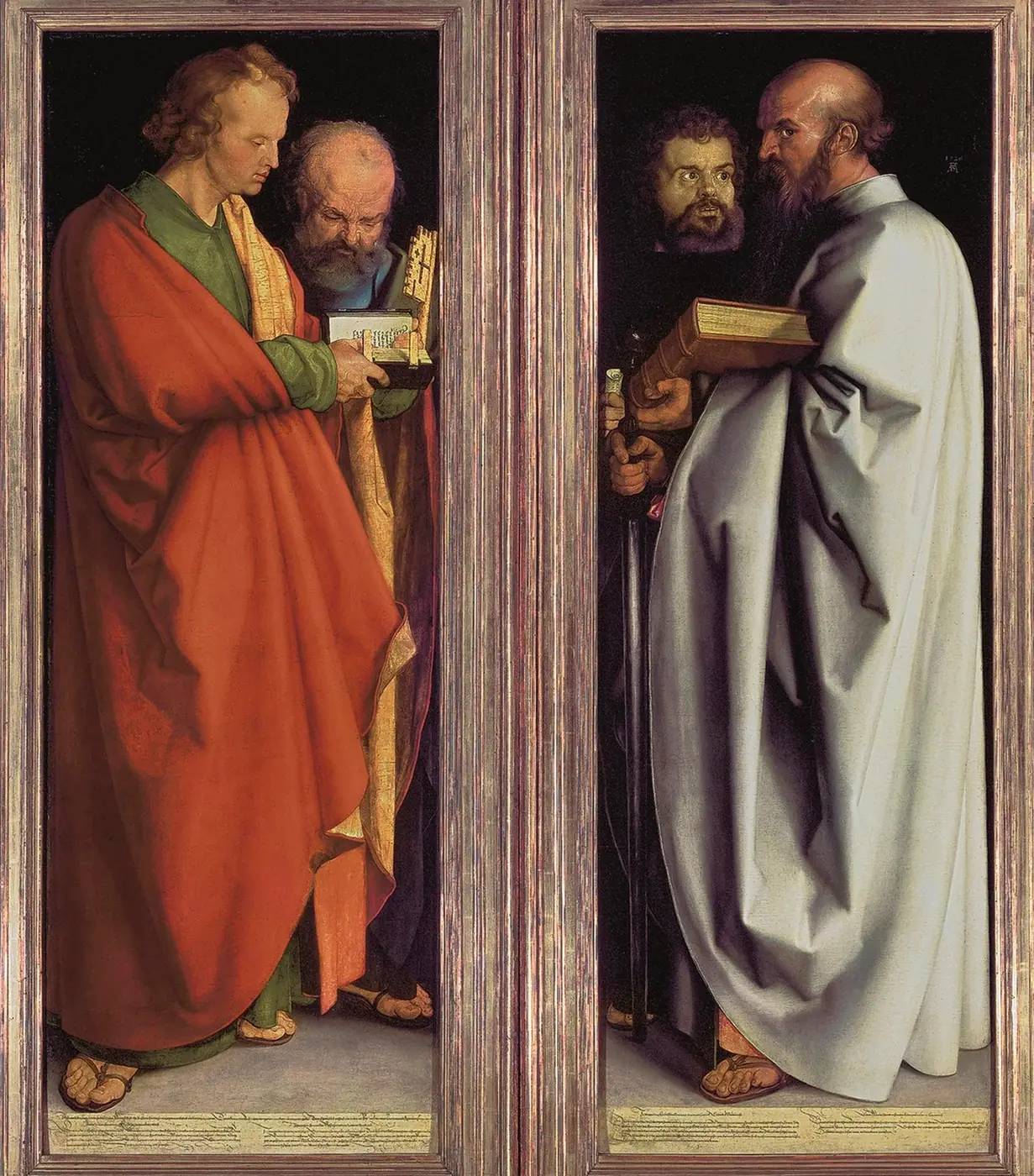
The city’s art too served the Reformation. Hans Sachs sang of Luther as the “Nightingale of Wittenberg”, and in 1526 Albrecht Dürer gave the council his “Four Apostles”. In 1530 Nuremberg signed the Augsburg Confession.
To see today: The great town churches of St. Lawrence and St. Sebald, Dürer’s House, and the Germanic National Museum with many testimonies of the Reformation period.
1525
Königsberg
Albert of Brandenburg-Ansbach was Grand Master of the Teutonic Order. On Luther’s advice he transformed the order’s state into the secular Duchy of Prussia in 1525 and introduced the Reformation. So the first Lutheran land in the world came into being.
The bishops Georg von Polentz and Erhard von Queiss supported the Reformation. In 1544 Duke Albert founded a university in Königsberg, the Albertina, which Immanuel Kant later made famous.
To see today: Königsberg is today called Kaliningrad and belongs to Russia. The cathedral, destroyed in the Second World War, has been rebuilt; Immanuel Kant’s tomb lies on its outer wall.
1527 and 1530
Celle
Duke Ernest of Brunswick-Lüneburg introduced the Reformation in his land from 1527. In 1530 he signed the Augsburg Confession in Augsburg; that is why he is called Ernest the Confessor.
In the same year he brought Urbanus Rhegius from Augsburg to Lüneburg and Celle as general superintendent. Rhegius ordered church life throughout the principality and wrote widely read textbooks.
To see today: The town church of St. Mary with the ducal crypt and the castle with its richly painted 16th-century chapel.
1528 and 1567
Brunswick
In 1528 Johannes Bugenhagen wrote a church order for Brunswick, the first of his great church orders, which later served as a model for Hamburg, Lübeck, and Pomerania.
From 1567 to 1586 Martin Chemnitz was superintendent in Brunswick. He was one of the main authors of the Formula of Concord and refuted the teachings of the Council of Trent in a great work. It was said of him: if Martin had not come, Martin would hardly have remained.
To see today: St. Blaise’s Cathedral and St. Martin’s Church, in which Martin Chemnitz is remembered.
1529
Hamburg
From 1523 evangelical preachers such as Stephan Kempe preached in Hamburg. In 1528 the council brought Johannes Bugenhagen, Luther’s pastor and colleague from Wittenberg, to the city. He wrote the church order, which came into force in 1529 and reordered church life, the schools, and care for the poor.
In the same year the Johanneum grammar school was founded. Hamburg remained a Lutheran city for centuries. Here, for example, Philipp Nicolai, the author of “How Lovely Shines the Morning Star”, served as pastor at St. Catherine’s.
To see today: The five main churches of St. Peter, St. James, St. Catherine, St. Michael, and St. Nicholas, whose tower ruin is today a memorial.
1529
Marburg
In 1527 Landgrave Philip of Hesse founded the first Protestant university in Marburg. In 1529 he invited the reformers from Wittenberg and Switzerland to his castle to unite them.
In the Marburg Colloquy Luther and Melanchthon met Huldrych Zwingli and Johannes Oecolampadius. They agreed on 14 of 15 points, but not on the Lord’s Supper. Luther held fast to the words of Christ: “This is my body.” From then on the Lutheran and Reformed churches went separate ways.
To see today: The Landgrave’s Castle, where the colloquy took place, and St. Elizabeth’s Church, one of the oldest Gothic churches in Germany.
1518, 1530, and 1555
Augsburg
As early as 1518 Luther was examined in Augsburg by Cardinal Cajetan and was to recant. He stayed in the Carmelite monastery of St. Anna and finally fled the city secretly by night.
On 25 June 1530 the Augsburg Confession was read before Emperor Charles V at the Diet. It is still the fundamental confession of the Lutheran church today. In 1555 the Peace of Augsburg legally secured the existence of the Lutherans in the empire.
To see today: St. Anna’s Church with the “Lutherstiege”, an exhibition in the former monastery. Every year on 8 August the city celebrates the High Peace Festival, a public holiday in Augsburg.
1530
Coburg
Because Luther was under the imperial ban, he was not allowed to travel to the Diet in Augsburg. So from April to October 1530 he waited at Veste Coburg, the southernmost point of Electoral Saxony.
From here he supported Melanchthon in Augsburg with many letters and encouraged him. Meanwhile he worked on the translation of the Prophets and wrote several treatises.
To see today: Veste Coburg with the Luther Chapel and the rooms where Luther lived. The art collections of the fortress own Cranach’s portrait of Luther from 1528.
1530 and 1531
Lübeck
The powerful Hanseatic city of Lübeck held on to the old faith for a long time. Only in 1530 did the citizens push through the Reformation, and in 1531 Johannes Bugenhagen wrote the Lübeck church order.
Later St. Mary’s Church became a center of Lutheran church music. The organist Dieterich Buxtehude worked here. In 1705 the young Johann Sebastian Bach walked from Arnstadt to Lübeck to hear him.
To see today: St. Mary’s Church, model for many brick churches in the Baltic region, the cathedral, and the old town, which is a UNESCO World Heritage Site.
1531 and 1537
Schmalkalden
In 1531 evangelical princes and cities joined together in Schmalkalden to form the Smalcald League in order to defend themselves against the emperor.
In 1537 the members of the league met again in Schmalkalden. For this Luther had written the Smalcald Articles. He fell seriously ill and could hardly take part in the deliberations, but many theologians signed his articles. Today they belong to the Lutheran confessional writings.
To see today: The Luther House, where Luther lived in 1537, the town church of St. George, and Wilhelmsburg Castle with its chapel, in which altar, pulpit, and organ are arranged one above the other.
1531 and 1593
Uppsala
King Gustav Vasa broke with Rome at the Diet of Västerås in 1527. The brothers Olaus and Laurentius Petri, both educated in Wittenberg, shaped the Swedish Reformation. Olaus worked on the first Swedish translation of the New Testament of 1526; Laurentius became the first evangelical Archbishop of Uppsala in 1531. In 1541 the whole Bible appeared in Swedish.
In 1593 the Synod of Uppsala expressly confessed the Augsburg Confession. With this Sweden was definitively a Lutheran country.
To see today: Uppsala Cathedral, the largest church in Scandinavia, seat of the Archbishop of the Church of Sweden and burial place of Gustav Vasa.
1536 and 1537
Copenhagen
After a civil war King Christian III removed the Catholic bishops in 1536 and introduced the Reformation in Denmark and Norway. For this he brought Johannes Bugenhagen from Wittenberg.
In August 1537 Bugenhagen crowned the king and queen in the Church of Our Lady. He ordained seven evangelical superintendents, the later bishops, wrote the church order, and renewed the university. In 1550 the first complete Bible in Danish appeared.
To see today: The Church of Our Lady, today Copenhagen Cathedral, with Bertel Thorvaldsen’s statue of Christ. The Lutheran people’s church is still the church of most Danes today.
1537
Trondheim
Norway was united with Denmark and became evangelical in 1537 by order of the Danish king. The last Catholic Archbishop of Nidaros, as Trondheim was then called, fled the country.
Nidaros Cathedral, built over the grave of the holy King Olav, became the Lutheran cathedral. Later the Norwegian kings were crowned and blessed here.
To see today: Nidaros Cathedral, the largest medieval church in Scandinavia. The old pilgrim routes to Trondheim, St. Olav’s Ways, are walked again today.
1541 and 1546
Halle
From 1541 Justus Jonas, a close friend of Luther, introduced the Reformation in Halle. On the way from Eisleben to Wittenberg, Luther’s body lay in state in the Market Church in February 1546.
Later Halle became a center of Pietism. Here August Hermann Francke founded the Francke Foundations in 1698 with an orphanage, schools, and a Bible institute. George Frideric Handel was also baptized in the Market Church in 1685.
To see today: The Market Church of Our Lady, in which casts of Luther’s death mask and hands are kept, and the Francke Foundations.
1543
Kronstadt (Brașov)
The humanist and printer Johannes Honterus brought the Reformation to the Transylvanian Saxons. In 1543 his “Reformation Booklet” appeared for Kronstadt and the Burzenland. In 1547 a church order for all the Saxons in Transylvania followed.
Far from the empire, the Transylvanian Saxons preserved their Lutheran church, their language, and their fortified churches for centuries.
To see today: The Black Church, one of the largest Gothic churches in southeastern Europe, with the monument to Honterus in front of it. The Evangelical Church of the Augsburg Confession in Romania cultivates the heritage of the Transylvanian Saxons.
1544 and 1552
Torgau
Torgau was the residence of the Saxon electors and thus a political center of the Reformation. Here the Torgau Articles were drawn up in 1530, a preliminary work for the Augsburg Confession. On 5 October 1544 Luther dedicated the chapel of Hartenfels Castle, one of the first church buildings planned from the start for evangelical worship.
In 1552 Katharina von Bora fled the plague from Wittenberg to Torgau. On the way she had an accident with the carriage and died a few months later in Torgau. In 1576 theologians drew up the “Torgau Book” here, a preliminary stage of the Formula of Concord.
To see today: Hartenfels Castle with its chapel, St. Mary’s Church with Katharina’s gravestone, and the house where she died, with an exhibition about her life.
1548
Turku
Mikael Agricola studied in Wittenberg under Luther and Melanchthon. Back in Finland he created the first books in the Finnish language: a primer, a prayer book, and in 1548 the New Testament.
Agricola is regarded as the father of written Finnish. In 1554 he became bishop of Turku, which then belonged to Sweden. To this day by far the largest part of the Finns is Lutheran.
To see today: Turku Cathedral, Finland’s national shrine, with a monument to Agricola in front of it.
1549
Bartfeld (Bardejov)
Leonhard Stöckel had studied in Wittenberg under Luther and Melanchthon and headed the Latin school in Bartfeld. In 1549 he wrote the Confessio Pentapolitana for five royal free cities of Upper Hungary, a confession modeled on the Augsburg Confession.
Many German and Slovak congregations in what was then Upper Hungary became Lutheran. Despite later persecution, an Evangelical Church of the Augsburg Confession has continued to exist in Slovakia.
To see today: The medieval old town with the Basilica of St. Giles, a UNESCO World Heritage Site. Bardejov lies in present-day Slovakia.
1550
Laibach (Ljubljana)
Primož Trubar was a preacher in Laibach and had to flee because of his evangelical preaching. In exile in Württemberg he had the first books in the Slovene language printed in Tübingen in 1550, a catechism and a primer.
With this he founded the Slovene written language. The Counter-Reformation later pushed the evangelical church in Slovenia back almost completely, but 31 October is still a public holiday there as Reformation Day.
To see today: The Trubar Monument in Ljubljana. Trubar’s portrait appears on the Slovenian one-euro coin.
1638
Wilmington
In 1638 Swedes founded the colony of New Sweden on the Delaware with Fort Christina, today’s Wilmington. In 1640 Reorus Torkillus came to America as the first Lutheran pastor.
Pastor Johannes Campanius translated Luther’s Small Catechism into the language of the Lenape, the native people on the Delaware; the translation was printed in Stockholm in 1696. In 1655 the Dutch conquered the colony, but the Swedish congregations continued.
To see today: Old Swedes Church (Holy Trinity) of 1699, one of the oldest churches still in use in the USA, and the park at the site of Fort Christina. In Philadelphia stands the sister church Gloria Dei of 1700.
1649 and 1664
New York
In New Amsterdam, later New York, Lutherans asked for a pastor of their own in 1649. But the Dutch governor Peter Stuyvesant forbade them public services, and a pastor who arrived in 1657 was expelled again.
Only after the English took over the city in 1664 were the Lutherans allowed to worship freely and soon to build a church of their own. New York later became a center of German and Scandinavian immigrants.
To see today: St. Matthew’s congregation in Manhattan traces itself back to the congregation of 1664. The city still has numerous Lutheran congregations.
1731 and 1732
Salzburg
In the Archbishopric of Salzburg many farmers and miners had secretly kept the evangelical faith. In 1731 Archbishop Leopold Anton von Firmian ordered their expulsion. Around 20,000 people had to leave their homeland.
The Prussian king Frederick William I took most of them into East Prussia. On their march through Germany the exiles were received in many cities with hymns and services. A small group founded the settlement of Ebenezer in Georgia in North America.
To see today: The 19th-century Protestant Christ Church, the first Protestant church in the city after the expulsion.
1734
Ebenezer
In 1734 the first expelled Salzburg Protestants came to Georgia and founded the settlement of Ebenezer on the Savannah River, “Hitherto hath the Lord helped us” (1 Samuel 7:12). Their pastors Johann Martin Boltzius and Israel Christian Gronau came from Halle.
The congregation built mills, raised silkworms, and founded an orphanage in 1737. Its pastors long spoke out against slavery. The settlement was hit hard in the War of Independence.
To see today: Jerusalem Church, built from 1767 to 1769, one of the oldest churches in Georgia, where services are still held, and a museum of the Salzburgers.
1742 and 1748
Philadelphia
In 1742 Henry Melchior Muhlenberg came from Halle to Pennsylvania. He gathered the scattered German Lutherans in Philadelphia, Trappe, and New Hanover into orderly congregations. His motto was: Ecclesia plantanda, the church must be planted.
In 1748 he and other pastors founded the Ministerium of Pennsylvania, the first Lutheran synod in America, and gave it a common order of worship. His sons helped shape the young republic: Frederick Augustus Muhlenberg became the first Speaker of the House of Representatives.
To see today: Augustus Church in Trappe of 1743, the oldest unaltered Lutheran church in the USA, where Muhlenberg is buried, and in Philadelphia the Swedish Gloria Dei Church.
1780
Cape Town
At the Cape of Good Hope, under the Dutch East India Company, only the Reformed faith could be practiced publicly for a long time. That is why the Lutheran merchant Martin Melck built a “warehouse” in 1774 that was in truth meant as a church.
In 1780 the company finally permitted a Lutheran congregation, and the building became its church. It was the beginning of the Lutheran church in southern Africa.
To see today: The Lutheran Church on Strand Street, the oldest Lutheran church in South Africa, and next to it the Martin Melck House.
1817
Kiel
Claus Harms, archdeacon at St. Nicholas Church in Kiel, published 95 theses of his own together with Luther’s 95 Theses for the Reformation anniversary in 1817. They were directed against the rationalism of his time and against the union of Lutherans and Reformed.
The theses set off a fierce controversy and awakened a new awareness of the Lutheran confession in northern Germany. Harms became one of the best-known preachers of his time.
To see today: St. Nicholas Church on the Old Market, where Harms preached.
1826 and 1863
Gettysburg
In 1826 Samuel Simon Schmucker founded a Lutheran seminary in Gettysburg, the oldest still existing in America. Schmucker wanted an “American Lutheranism” that would move closer to the rest of American Protestantism, and in 1855 he proposed a weakened version of the Augsburg Confession.
This met with opposition: many Lutherans wanted to hold fast to the confessions. In July 1863 the Battle of Gettysburg raged around the seminary; its cupola served as an observation post, the building as a field hospital.
To see today: The Seminary Ridge Museum in the old seminary building tells of the battle, the field hospital, and the history of the seminary.
1839
Buffalo
The oppression of the Old Lutherans in Prussia drove many to emigrate. In 1839 Pastor Johannes Andreas August Grabau led a large group to Buffalo in the state of New York.
In 1845 they founded the Buffalo Synod. Grabau disputed with the Missouri Synod for a long time about the understanding of church and ministry. In 1930 the Buffalo Synod merged into the American Lutheran Church.
To see today: In and around Buffalo there are still Lutheran congregations that go back to the emigrants from Prussia.
1839 and 1847
St. Louis
Early in 1839 some 700 Saxon Lutherans under Pastor Martin Stephan reached St. Louis and settled in Perry County on the Mississippi. In the same year Stephan was deposed for serious misconduct, and the emigrants fell into a deep crisis.
Carl Ferdinand Wilhelm Walther led them out of it: in the Altenburg Debate of 1841 he clarified what the church is. The settlers founded a log-cabin school in Altenburg, which became Concordia Seminary in St. Louis. In 1847 the Missouri Synod came into being with Walther as its first president.
To see today: Concordia Seminary in St. Louis, Concordia Historical Institute, and in Altenburg the log cabin of the first seminary with a museum of the Saxon emigration.
1845
Frankenmuth
In 1845 Wilhelm Löhe of Neuendettelsau sent a group of Franconian settlers under Pastor August Crämer to Michigan. They were to live as a Lutheran congregation and do mission among the Ojibwe, the native people of the area. They named the place Frankenmuth, “courage of the Franconians”.
Further colonies followed. In 1846 Löhe also founded a seminary in Fort Wayne, Indiana. His emissaries were among the founders of the Missouri Synod in 1847.
To see today: The great St. Lorenz Church and the town, still Franconian in character, which attracts many visitors every year.
1847 and 1988
Chicago
In April 1847 representatives of Saxon, Franconian, and other German congregations founded the “German Evangelical Lutheran Synod of Missouri, Ohio, and Other States”, today’s Missouri Synod, in St. Paul’s Church in Chicago.
More than a hundred years later Chicago became the seat of the largest Lutheran church in the USA: on 1 January 1988 the Evangelical Lutheran Church in America (ELCA) began its work, formed from the merger of three churches.
To see today: The churchwide office of the ELCA and the Lutheran School of Theology at Chicago.
1849
Hermannsburg
In the heath village of Hermannsburg Pastor Ludwig Harms founded a mission institute in 1849. He trained farmers’ sons as missionaries who were to live as a Lutheran community abroad and pass on the gospel.
The congregation had its own ship built, the “Candace”, which brought the first missionaries and settlers to Africa in 1853. After Ludwig Harms’s death his brother Theodor continued the work.
To see today: St. Peter and Paul Church and the Ludwig Harms House. The Evangelical Lutheran Mission in Lower Saxony still has its seat in Hermannsburg.
1850
Milwaukee
German missionaries founded the Wisconsin Synod near Milwaukee in 1850. At first it was connected with the united mission societies in Germany, but it soon turned decisively to the Lutheran confessions.
In 1872 it joined with the Missouri Synod and others to form the Synodical Conference. Wisconsin and the other states on the Upper Mississippi became home to hundreds of thousands of German and Scandinavian Lutherans.
To see today: The Wisconsin Evangelical Lutheran Synod (WELS) is one of the great confessional Lutheran churches of the USA. Its seminary is in Mequon, north of Milwaukee.
1820 and 1851
New Market
In New Market in the Shenandoah Valley in Virginia the Henkel family of pastors ran a printing press. The Henkels belonged to the Tennessee Synod, founded in 1820, which held firmly to the Lutheran confessions at a time of weakening confessional commitment.
In 1851 the first complete English translation of the Book of Concord appeared from their press. With this the Lutheran confessions became accessible to English-speaking Lutherans too.
To see today: The historic center of New Market in the Shenandoah Valley, where the Henkel press worked.
1854
Hermannsburg (Natal)
In 1854 the “Candace” reached the coast of Natal with the first Hermannsburg missionaries and settlers. Inland they founded a station among the Zulu, which they named after their home village of Hermannsburg.
From here numerous congregations arose among the Zulu and Tswana. The work of the Hermannsburg Mission contributed much to the growth of the Lutheran churches in southern Africa.
To see today: Hermannsburg School, founded in 1856, one of the oldest schools in KwaZulu-Natal, and the mission church.
1860
Muhlenberg Mission (Liberia)
In 1860 the American Lutheran Morris Officer founded a mission station on the St. Paul River in Liberia. He named it after Henry Melchior Muhlenberg, the patriarch of the Lutheran church in America.
The mission ran schools above all. The Lutheran Church in Liberia grew out of it, one of the oldest Lutheran churches in West Africa.
To see today: The Lutheran Church in Liberia. In Monrovia St. Peter’s Church commemorates the hundreds of people who sought refuge there during the civil war in 1990 and were murdered.
1861
Decorah
In the 19th century hundreds of thousands of Norwegians and Swedes emigrated to the Midwest. They founded their own Lutheran synods, the Norwegians the Norwegian Synod in 1853, the Swedes the Augustana Synod in 1860.
In 1861 the Norwegian Synod founded Luther College to train pastors; a year later it moved to Decorah, Iowa. Many of these synods later merged into the ELCA.
To see today: Luther College and Vesterheim, the great museum of Norwegian immigration to America.
1866 and 1872
Antsirabe
In 1866 Norwegian missionaries began their work on Madagascar. In 1872 Thorkild Rosaas founded the station of Antsirabe in the highlands, which became a center of the mission.
At the end of the 19th century the revival movement Fifohazana arose on Madagascar, whose lay shepherds still pray for the sick and the troubled today. The Malagasy Lutheran Church is today one of the great Lutheran churches of the world.
To see today: Lutheran congregations, schools, and a Lutheran hospital. The Malagasy Lutheran Church has several million members.
1870
Olukonda
In 1870 Finnish missionaries came to the land of the Ovambo in the north of present-day Namibia. In Olukonda Martti Rautanen, called “Nakambale” by the Ovambo, worked for more than fifty years. He worked on the translation of the Bible into the Ndonga language.
The Evangelical Lutheran Church in Namibia grew out of the Finnish mission. Today Namibia is one of the countries with the largest share of Lutherans in its population.
To see today: Rautanen’s mission house, one of the oldest buildings in northern Namibia, today the Nakambale Museum, and the old mission church.
1893
Moshi
In 1893 the Leipzig Mission took over the work at Kilimanjaro and founded stations among the Chagga, among others in Moshi. The missionary Bruno Gutmann lived here for decades and tried to proclaim the gospel within the traditional community life of the Chagga.
From this and other missions the Evangelical Lutheran Church in Tanzania came into being in 1963. With many millions of members it is today one of the largest Lutheran churches in the world.
To see today: The churches of the old mission stations at Kilimanjaro and nearby the Lutheran university of Makumira near Arusha.
1913
Numan
In 1913 Danish missionaries of the Sudan United Mission came to Numan on the Benue in northeastern Nigeria and began their work among the Bachama people.
The Lutheran Church of Christ in Nigeria grew out of their work and is today one of the great Lutheran churches of Africa.
To see today: The Lutheran Church of Christ in Nigeria has its seat in Numan; it has more than two million members.
1959
Addis Ababa
Swedish missionaries worked in the Horn of Africa from 1866. Onesimos Nesib, a freed slave from the Oromo people, translated the Bible into his mother tongue with them; it appeared in 1899.
In 1959 the Ethiopian Evangelical Church Mekane Yesus was founded in Addis Ababa. Its general secretary Gudina Tumsa was murdered by the communist regime in 1979. With more than ten million members it is today the largest Lutheran church in the world.
To see today: The church leadership of the Mekane Yesus Church and Mekane Yesus Seminary in Addis Ababa.
Map as of 2026: the map shows present-day national and state borders, not the borders at the time of the Reformation. At that time the places belonged to many small territories of the Holy Roman Empire and other realms. Map data: Natural Earth, version 5, retrieved in October 2026 (public domain).